 Mirage Capture
How to use an iPad as a field monitor for your camera
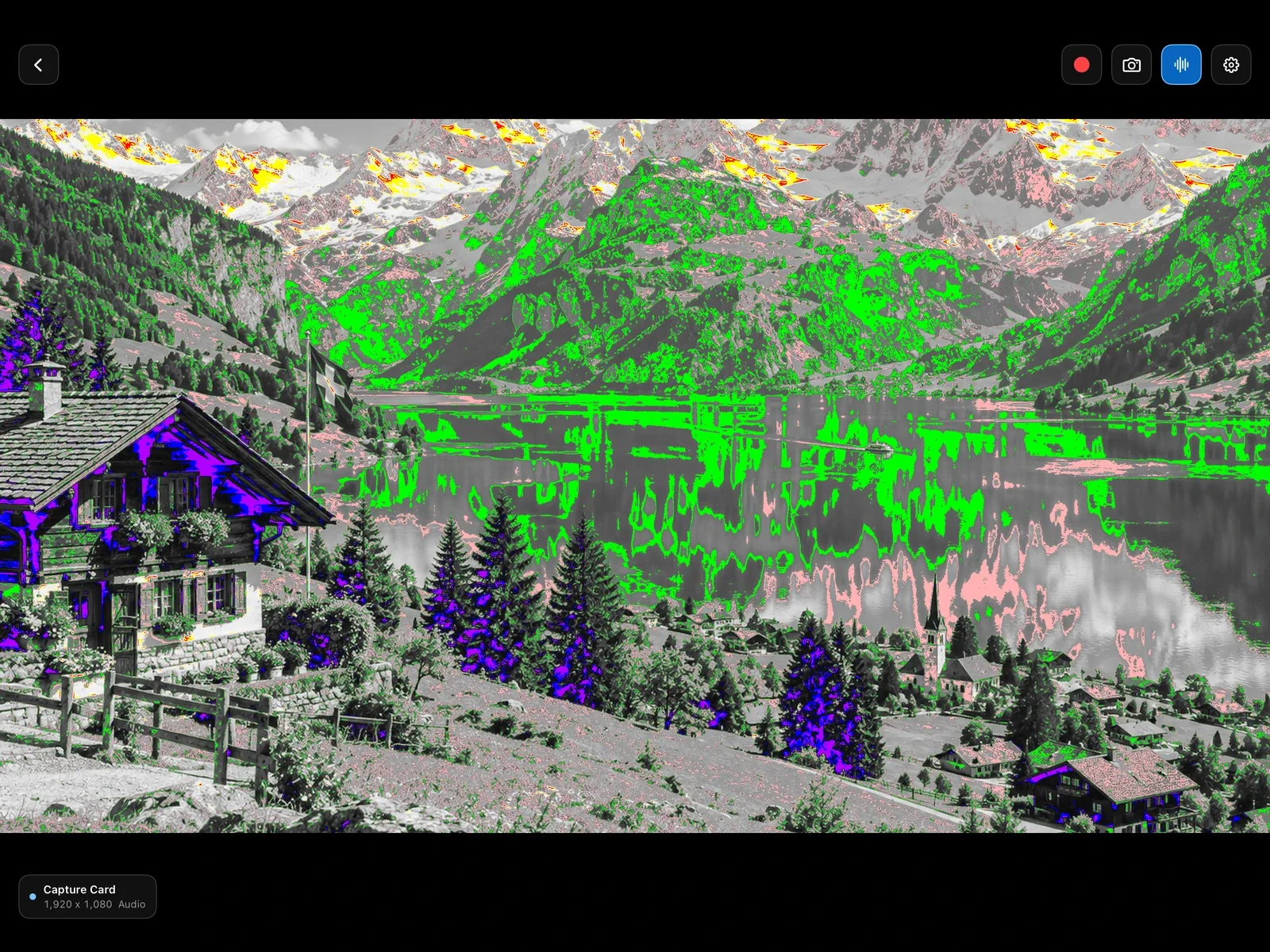
Through a UVC capture card, an iPad becomes a large monitor with false color, zebras, focus peaking, a waveform, a histogram, frame guides, and LUTs.
What you need
- A camera with clean HDMI out
- A UVC capture card
- An iPad with a USB-C port and iPadOS 17 or later
Steps
Send clean HDMI
Turn on clean HDMI output on the camera so its menus and focus boxes stay off the feed, and connect it to the capture card.
Open Capture Card
Connect the card to the iPad, open Capture Card, and use Detect Capture Card.
Turn on your tools
False color, zebras, or focus peaking, plus a waveform or histogram, and a LUT if you shoot log.
Reading the tools
- False color: brightness as color zones. Red is clipping, pink is skin tone, green is middle grey.
- Zebras: stripes over everything above the level you set.
- Focus peaking: the sharpest edges outlined in color.
- Waveform and histogram: the levels of the whole picture.
- Frame guides: line up the shot and its crop.
Clean in every output
Overlays stay on the iPad. Recordings, broadcasts, and screenshots get the clean feed, so a client can watch the same picture on an iPhone or a Mac without your tools in the way.
Questions
Can I load my own LUT?
Yes. Load your own LUTs; they apply to the iPad’s view only.
Can someone else watch the feed?
Yes. Broadcast it to an iPhone, iPad, or Mac nearby, or to OBS over NDI®.