Every camera you own, in one studio on your Mac.
Mirage for Mac brings in your iPhones and iPads over Wi-Fi, with sound, adds your Mac’s own cameras and screen, and arranges them for you. Use the result as your camera in any app, stream it, or record every angle.
Download on the App StoreDownload on the Mac App StoreRequires macOS 26 or later. Included with Mirage Capture.
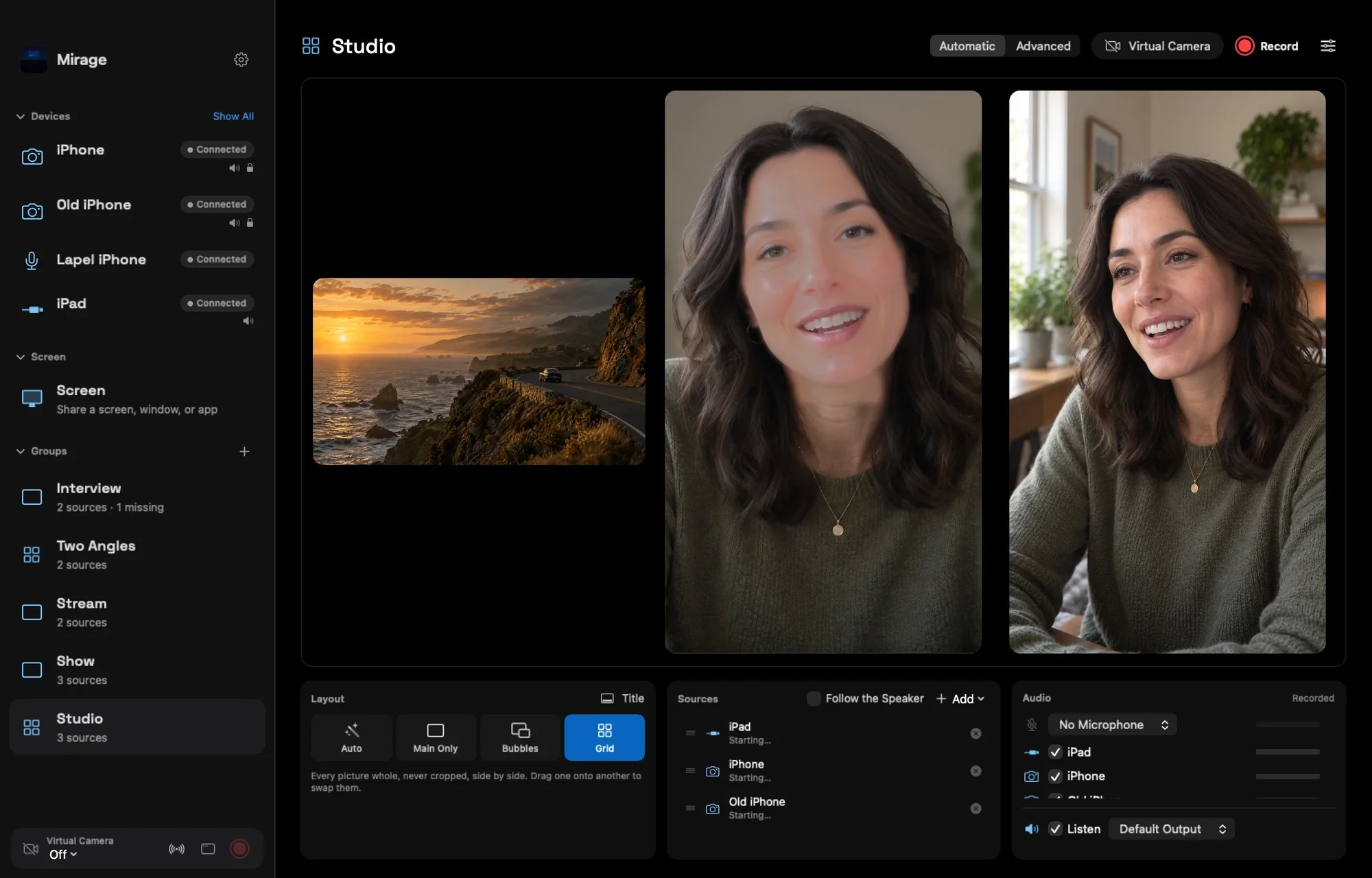
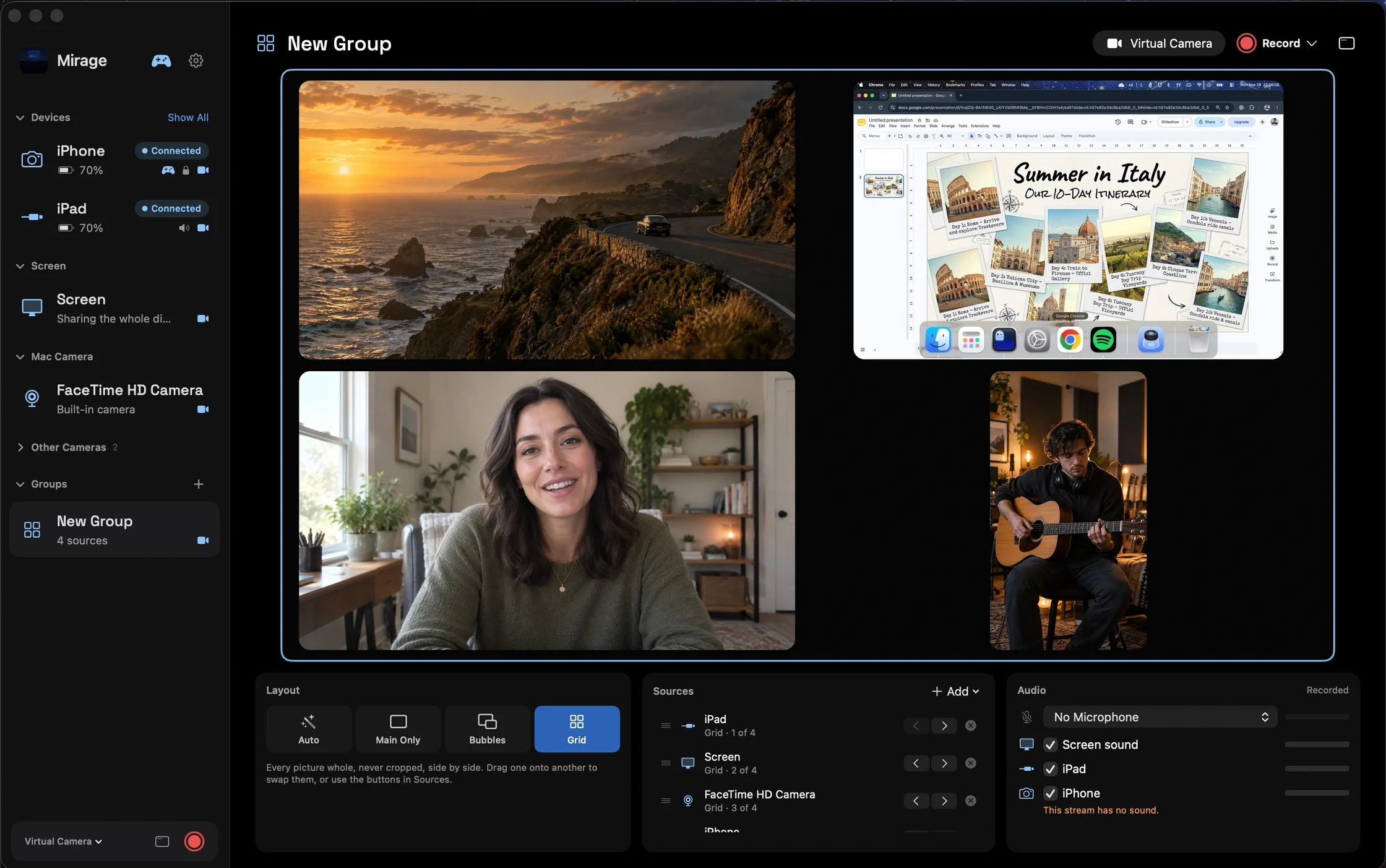
Groups that arrange themselves.
Drag one source onto another to make a group. Cameras float in bubbles over a shared screen or capture card, or sit side by side in a grid. Switch which one is main yourself, or turn on Follow the Speaker and let the loudest voice lead.
Add a title, your logo, and a chroma key to any group. Advanced lets you place every layer by hand.
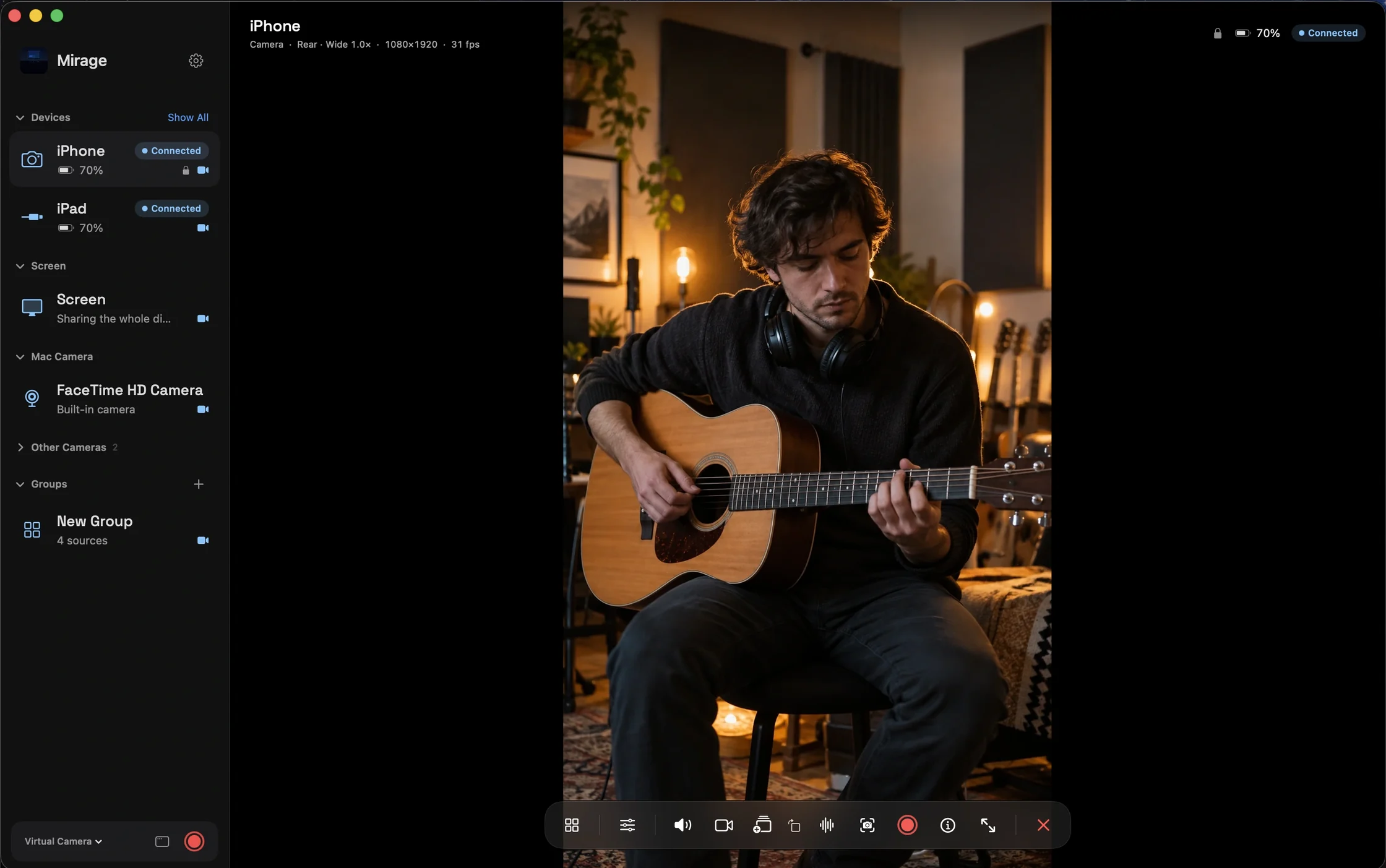
Mirage Camera, in every app.
Turn on Virtual Camera, then choose “Mirage Camera” in Zoom, Google Meet, FaceTime, Teams, Discord, or OBS. Show one camera or a whole group, with no plugin.
Whatever the virtual camera shows gets a purple edge on its device, so everyone knows which camera is on.
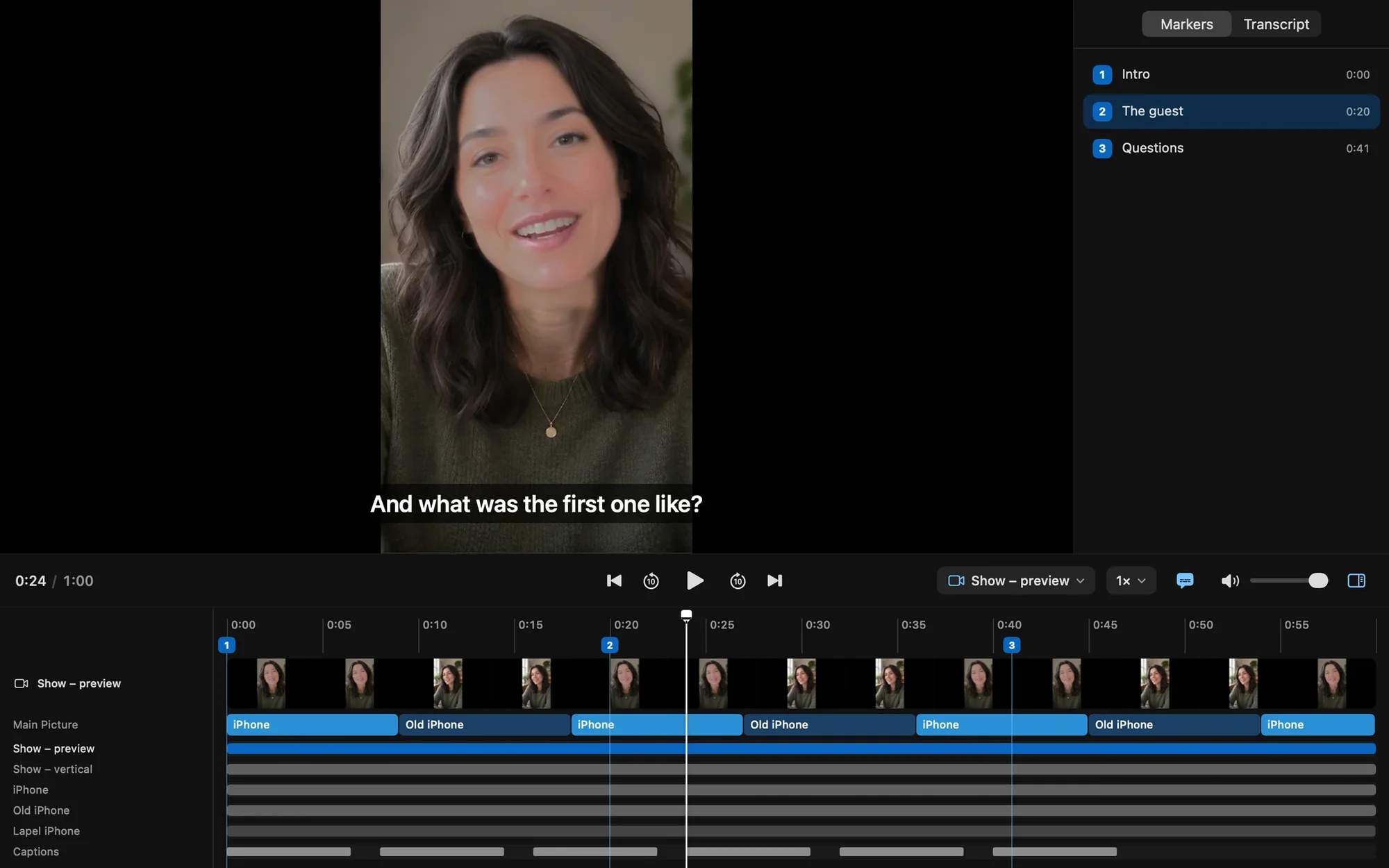
Every angle, its own file.
Record makes a folder with a file for every camera, screen, and microphone, all starting together. A timeline for Final Cut Pro (FCPXML) and for Premiere Pro and DaVinci Resolve (OpenTimelineIO) has your cuts and markers in place.
iPhones and iPads keep a full-quality copy of their own, and the Mac downloads it into the same folder. Markers are saved as YouTube chapters.
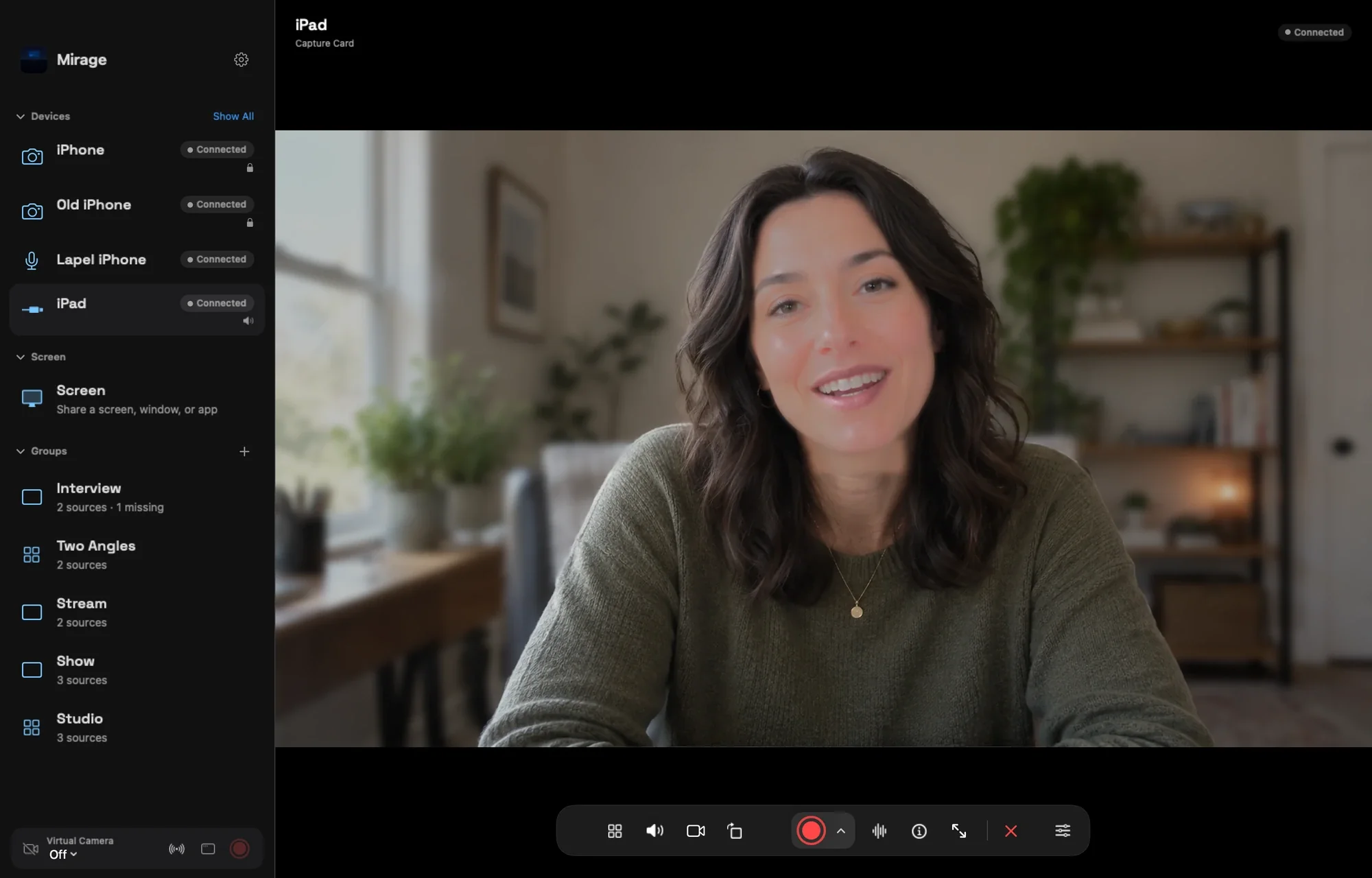
Your iPad, on your Mac.
Watch an iPad’s capture card on the Mac, with its sound: a camera, a console, or another computer becomes one more source in your studio.
Turn your Mac into a multicamera control room with Mirage.
More in Mirage for Mac
Questions
Does Mirage for Mac cost extra?
No. One purchase of Mirage Capture includes the iPhone, iPad, Apple Watch, and Mac apps.
Which apps can use Mirage Camera?
Any Mac app that lets you pick a camera: Zoom, Google Meet, FaceTime, Microsoft Teams, Discord, OBS, and others. Mirage Camera is video only; your call app uses your microphone as usual.
How do I turn on the virtual camera?
Turn on Virtual Camera in Mirage for Mac. The first time, macOS asks you to allow it in System Settings › General › Login Items & Extensions › Camera Extensions. Then choose “Mirage Camera” in your app.
Where do recordings go?
Each recording gets its own folder in Movies › Mirage, with a file for every source, a timeline for your editor, and the devices’ own copies once they download.
Which Mac do I need?
A Mac with macOS 26 or later.
Guides
Also in Mirage Capture
Get Mirage Capture.
One purchase for iPhone, iPad, Mac, and Apple Watch. No account, no subscription.
Download on the App StoreDownload on the Mac App Store