 Mirage Capture
How to add live captions to a video call or stream
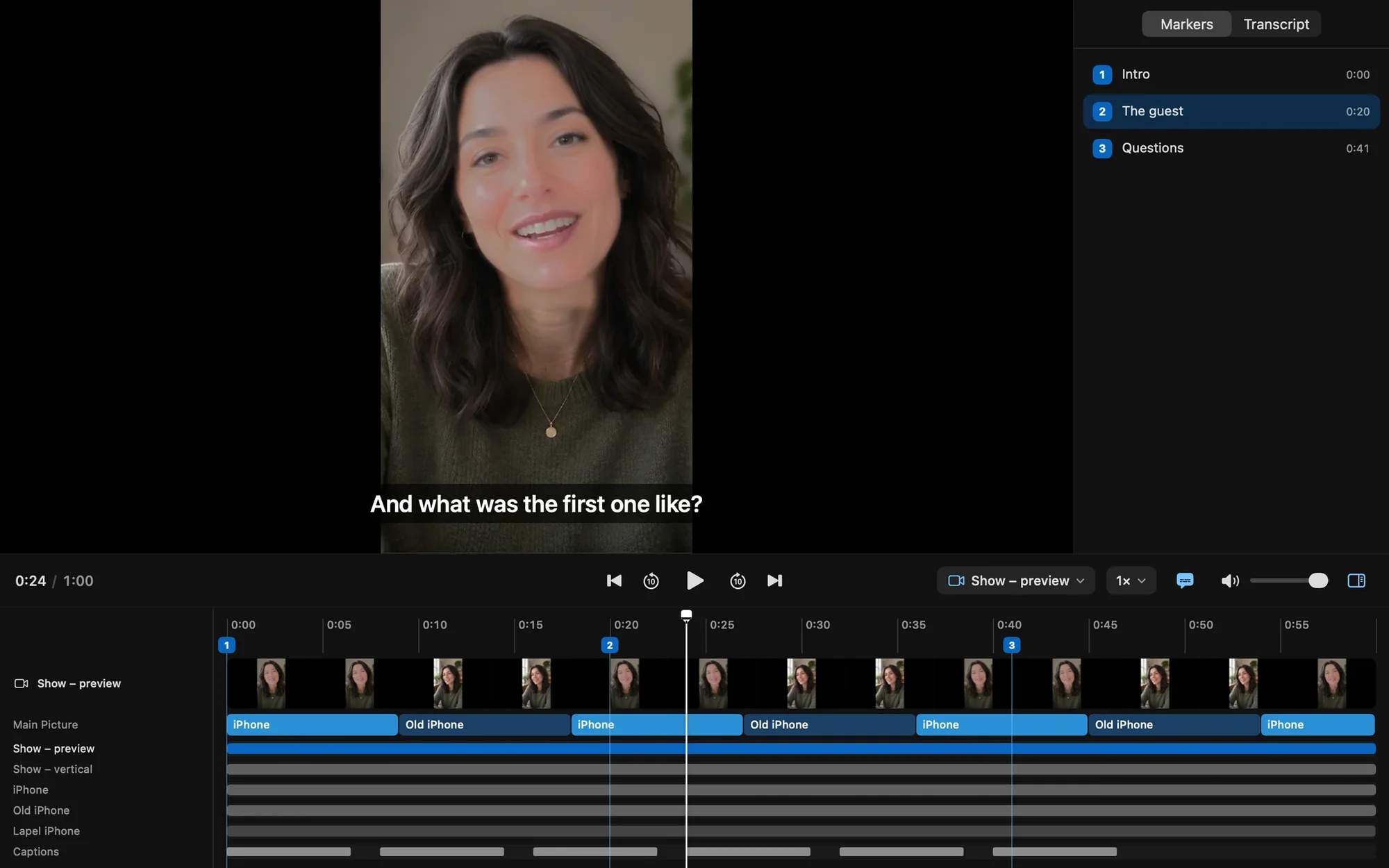
Mirage for Mac can write captions into the picture itself. Because they are part of Mirage Camera’s picture, they appear in any call or stream, whatever app the others use.
What you need
- A Mac with macOS 26 or later
- Mirage Capture
- A camera: an iPhone, or the Mac’s own
Steps
Turn on captions
Mirage for Mac › Settings › Captions: Captions on, with the language and the speech model.
Show them in the picture
The Captions button next to Record. Captions appear along the bottom of the picture in use.
Use Mirage Camera
Turn on Virtual Camera and choose “Mirage Camera” in the call app. Everyone sees the captions.
Captions for recordings
A take with captions on gets a Captions.srt file, and the captions are on its Final Cut Pro timeline. A recording without captions can get them afterward: open it in the recording player and choose Make Captions.
Questions
Does it send my voice to the cloud?
No. Speech recognition runs on your Mac.
Do captions appear in the separate camera files?
No. Captions are in the arranged picture, the stream, and the vertical file, never in a source’s own file.