 Mirage Capture
How to record a video podcast with iPhones
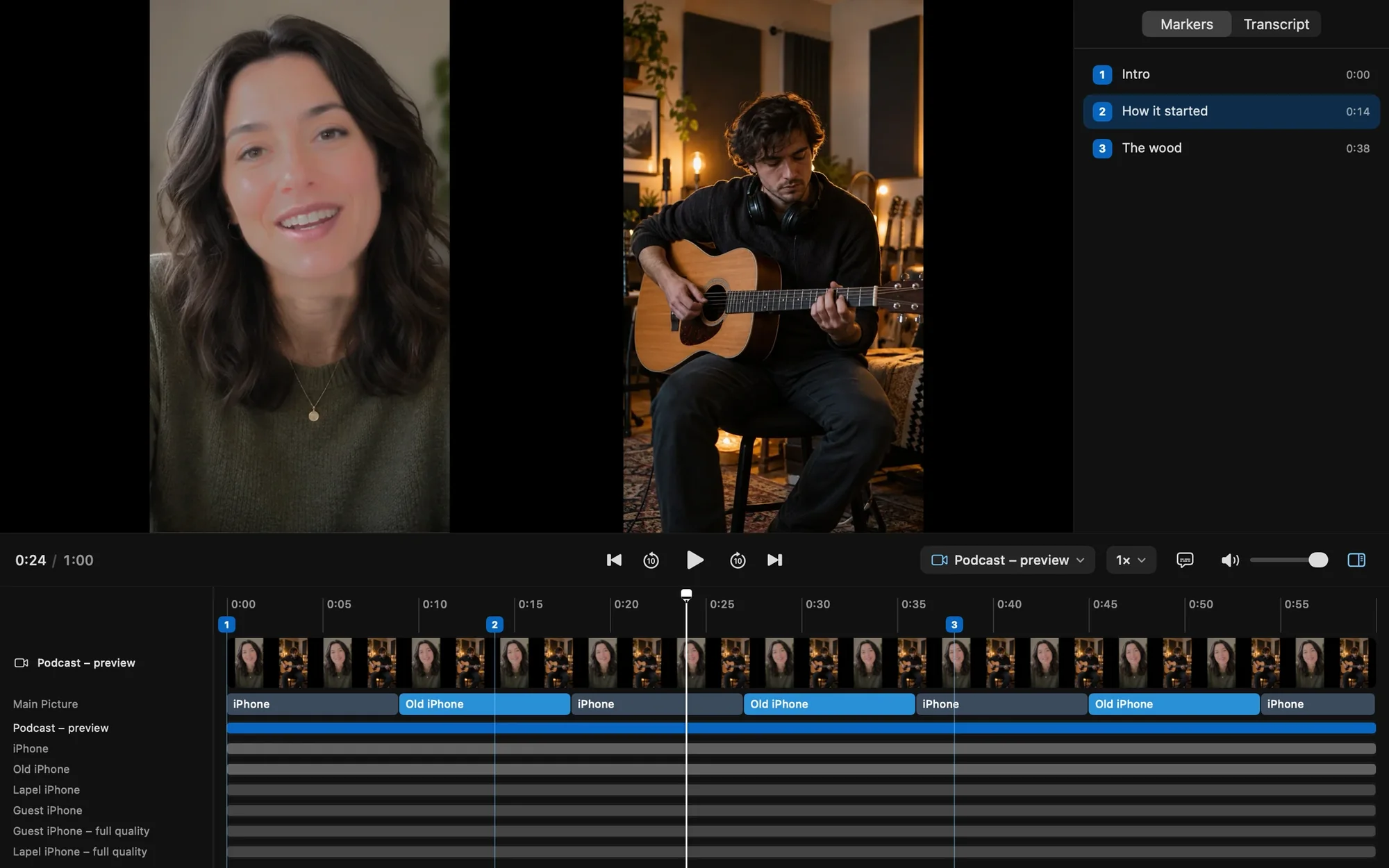
A video podcast needs a camera and a microphone for every voice. iPhones can be both. Mirage for Mac records each angle and each voice on its own, switches to whoever is talking, and hands you a timeline.
What you need
- An iPhone per angle, and optionally one per voice as a microphone
- A Mac with macOS 26 or later
- Every device on the same local network
Steps
Set up the cameras
An iPhone in front of each person, in Camera with Mirage Broadcast on, each paired in Mirage for Mac.
Add a microphone per voice
A spare iPhone in Microphone close to each person, or the cameras’ own microphones.
Make the show’s group
Put the cameras in one group and turn on Follow the Speaker: the picture switches to the loudest voice.
Record, with captions and markers
Captions in Settings › Captions, then Record, with a marker at each topic.
After the recording
Open the take in the recording player to check it, with its captions and markers. Markers become YouTube chapters, and the vertical file is ready for Shorts, Reels, and TikTok.
Questions
Can I stream the podcast live?
Yes. Mirage for Mac streams with your own stream key over RTMP or RTMPS while it records.
Can a guest join on a video call?
Use Mirage Camera as the camera in your call app, so the guest sees your show’s picture.