 Mirage Capture
How to livestream with several cameras from your Mac
Mirage for Mac is a small live switcher. Bring in your iPhones and iPads, switch between them, add a title and your logo, and stream with your own stream key, while every angle records on its own.
What you need
- iPhones or iPads with iOS 17 or later as cameras
- A Mac with macOS 26 or later
- A stream key and server address from your streaming service
Steps
Add your cameras
Camera with Mirage Broadcast on, on each iPhone, each paired in Mirage for Mac.
Build the show
A group, a title and your logo, and captions if you want them in the picture.
Add your stream key
Your service’s server address and stream key go in Mirage for Mac › Settings › Streaming. The key is kept in your Mac’s keychain.
Go
Start Streaming, and switch cameras yourself or with Follow the Speaker. Record keeps every angle too.
Run it from across the room
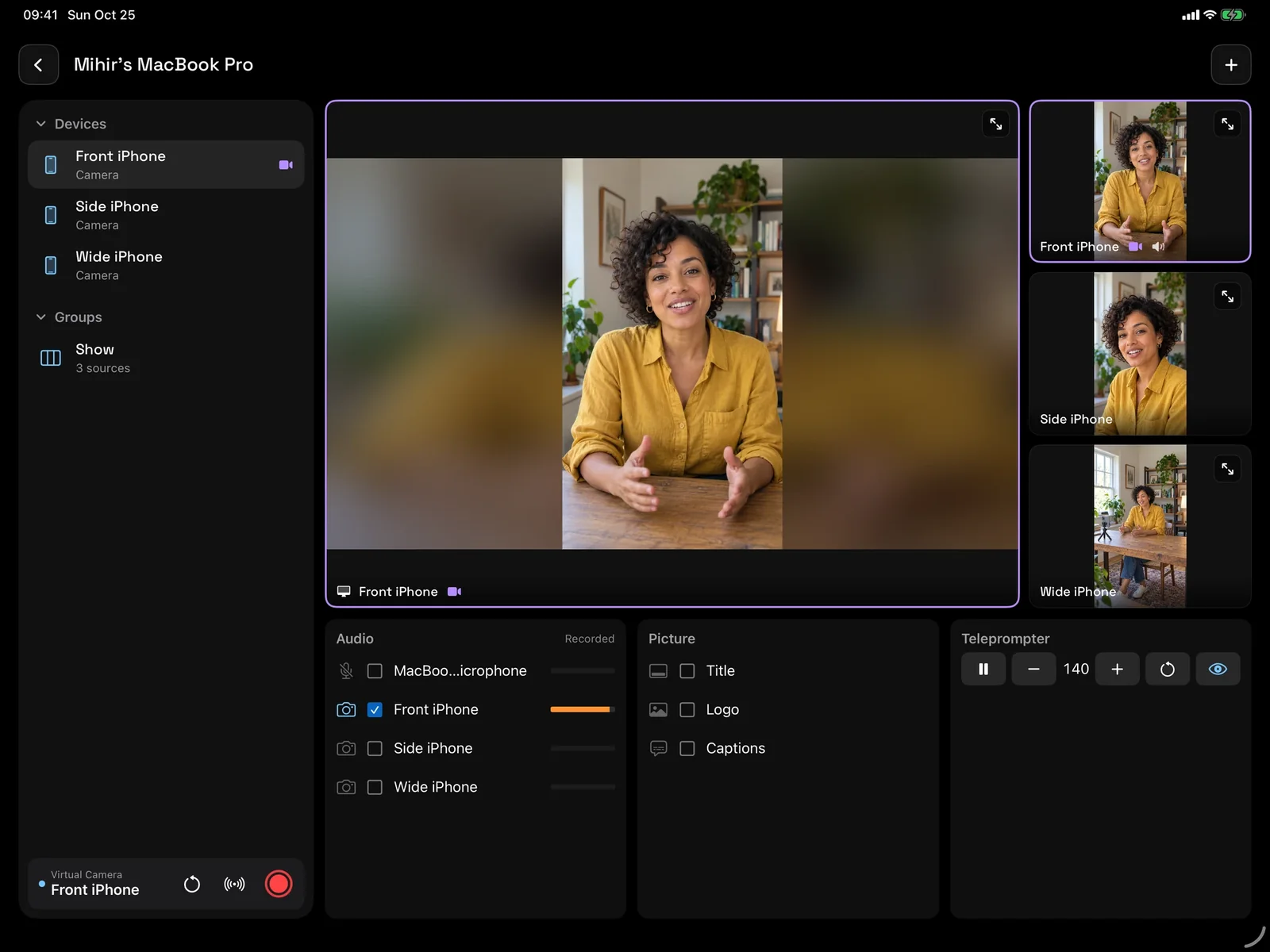
Director on an iPad or iPhone shows the studio’s sources, the picture in use, and its sound, and starts and ends the stream with a press and hold. Apple Watch can switch cameras, add markers, and play a replay.
Questions
Which services work?
Any service that accepts RTMP or RTMPS with a stream key, such as YouTube and Twitch.
Can I play an instant replay?
Yes. Instant replay plays the last 10, 20, or 30 seconds of the picture again, live.