Any iPhone is a microphone.
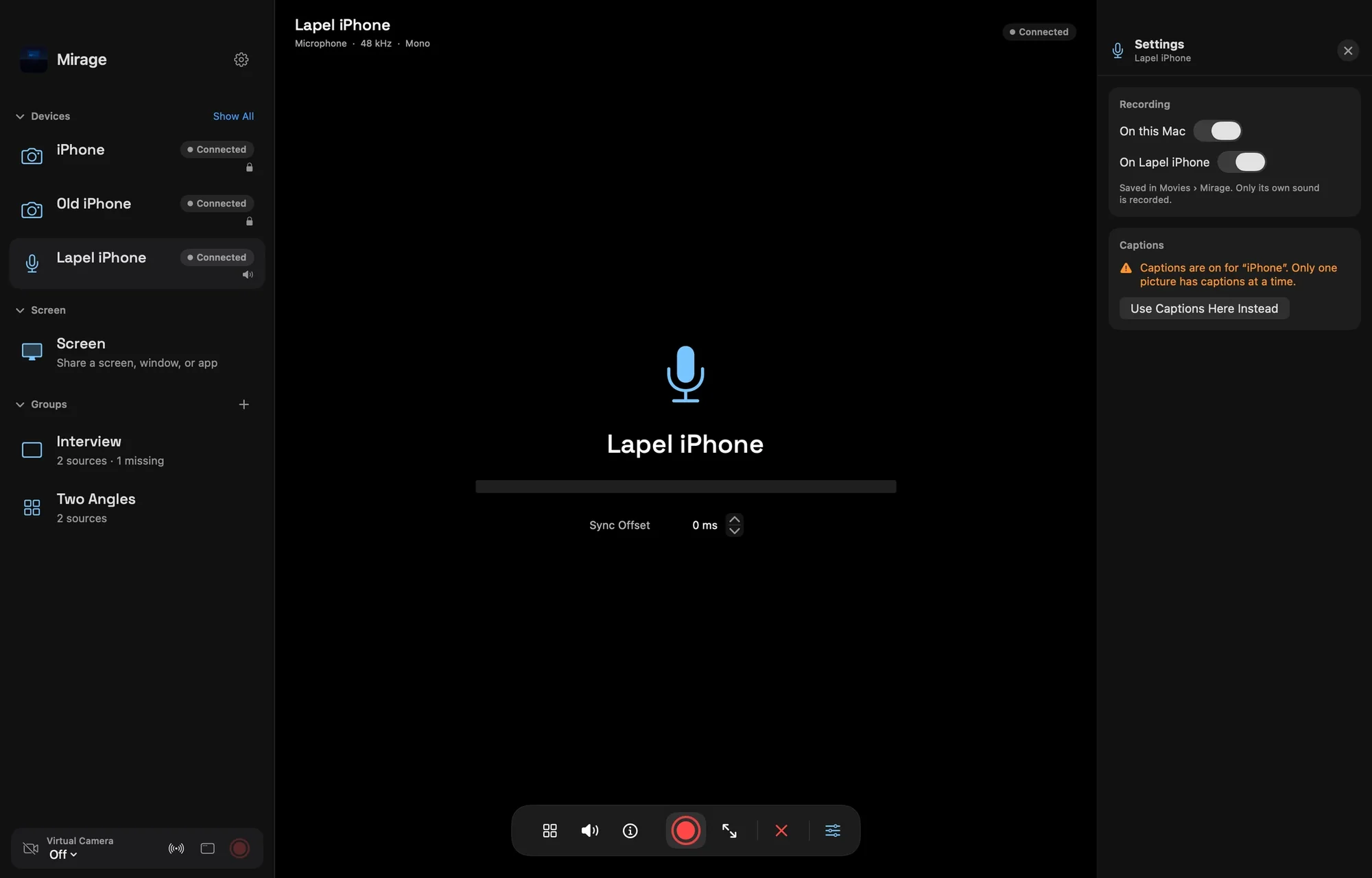
Put a spare iPhone near the voice you want to hear. Mirage for Mac hears it over Wi-Fi, keeps it on its own recording lane, and collects the full-quality copy the phone saves itself.
Download on the App StoreDownload on the Mac App StoreiPhone or iPad with iOS 17 or later, and Mirage for Mac.
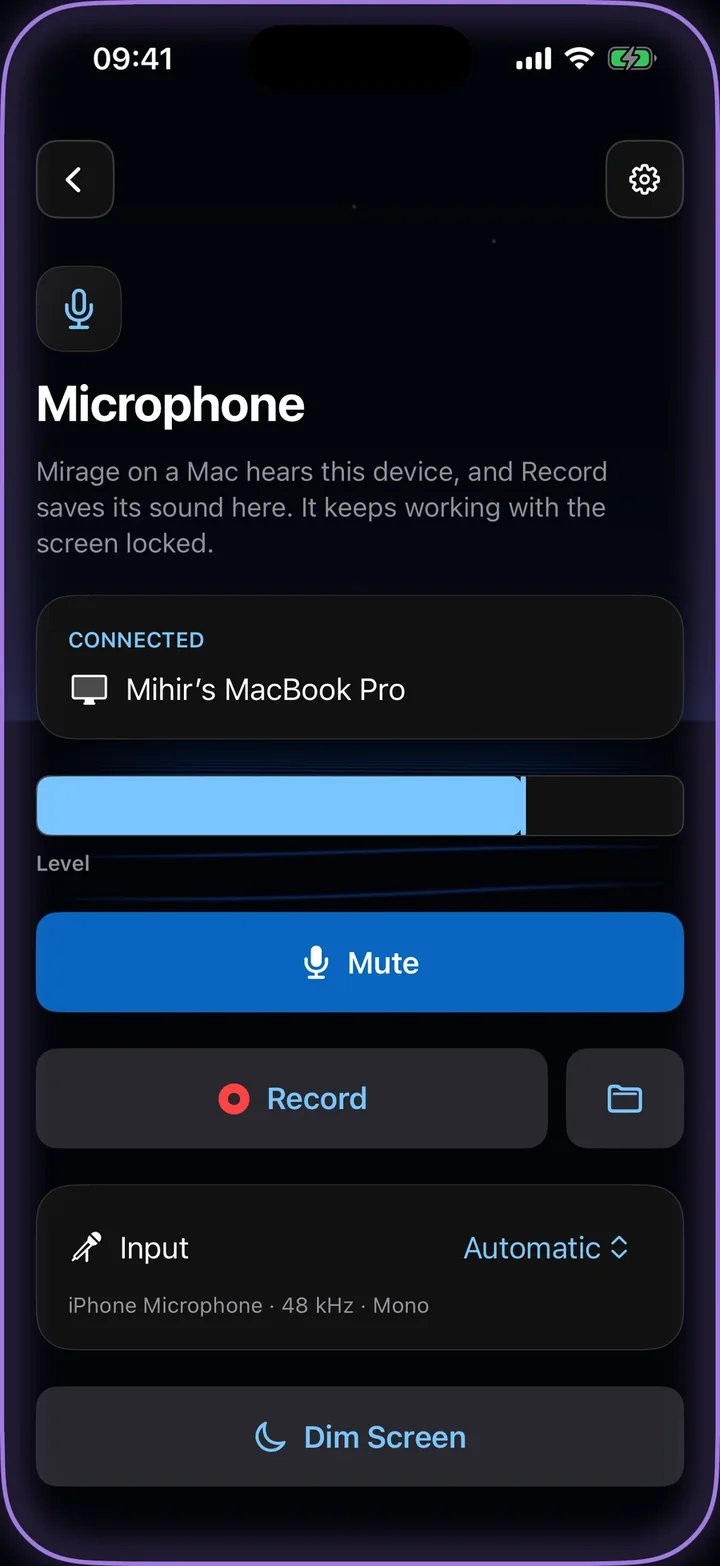
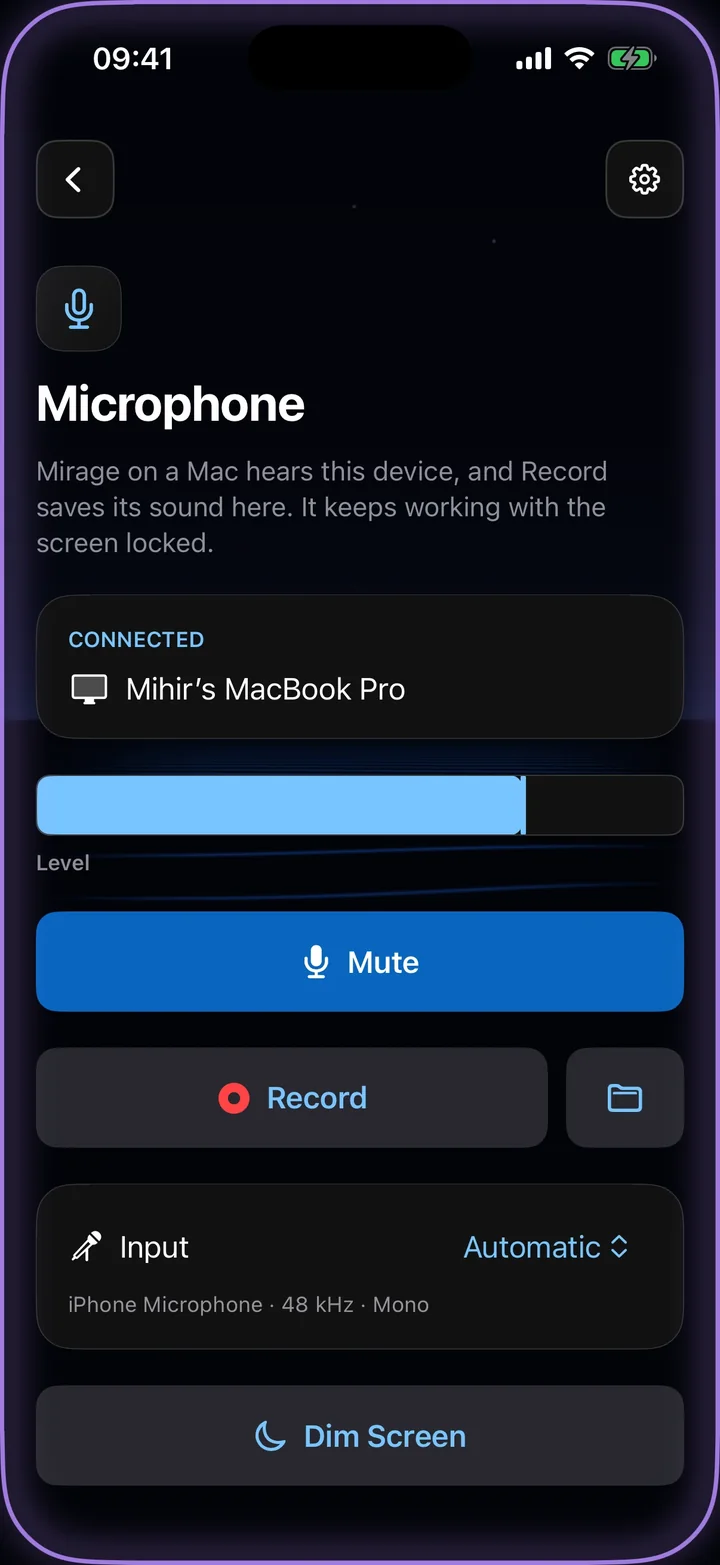
Locked screen, still recording.
Microphone keeps working with the screen locked or dimmed, so the phone can sit in a pocket or on a desk. A purple edge shows when the Mac is listening, red when it records.
It saves its own copy on the device, and the Mac downloads it after the take.
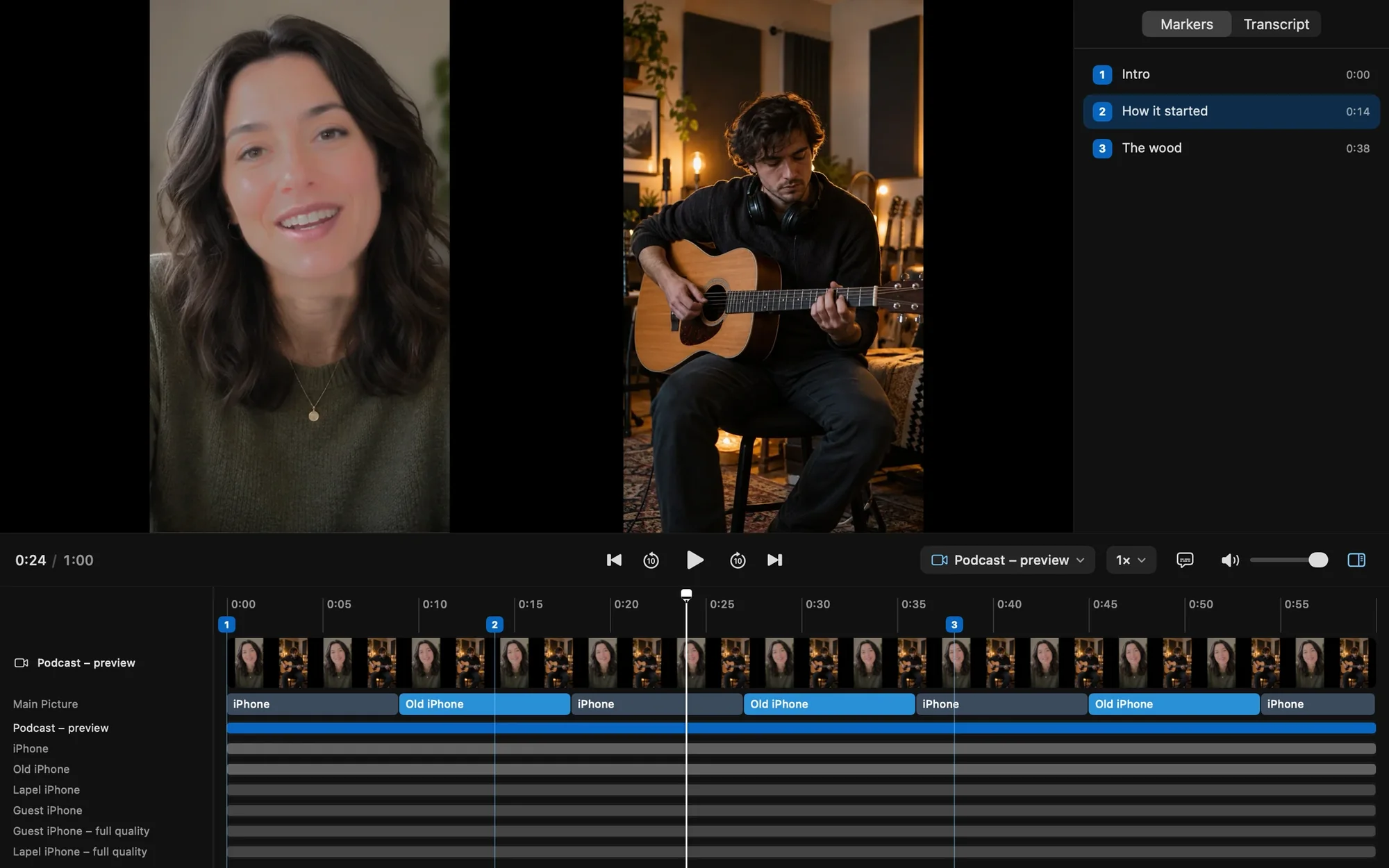
Every voice, its own track.
Each microphone is its own file and its own lane in the recording, next to the cameras. Fix one voice in your editor without touching the others.
Turn a spare iPhone into a wireless microphone with Mirage.
More in Microphone
Questions
Can I use my iPhone as a microphone for my Mac?
Yes. Open Microphone on the iPhone and pair it with Mirage for Mac. The Mac uses it like any other source, and records it on its own lane.
Does it work with the screen off?
Yes. Microphone keeps working with the screen locked, and Dim Screen darkens it while it runs.
What happens if Wi-Fi drops?
The iPhone records its own copy on the device, so the take is safe. The Mac downloads it afterward.
Guides
Also in Mirage Capture
Get Mirage Capture.
One purchase for iPhone, iPad, Mac, and Apple Watch. No account, no subscription.
Download on the App StoreDownload on the Mac App Store