How to use your iPad as a monitor for a Nintendo Switch, PS5, or Xbox
A console sends HDMI, and an iPad can’t take HDMI on its own. Through a UVC capture card that iPadOS recognizes, Capture Card shows the console’s picture on the iPad and plays its sound. A PlayStation 5 needs one setting changed first; a Nintendo Switch and an Xbox need none for games.
What you need
- An iPad with a USB‑C port and iPadOS 17 or later
- A UVC capture card that iPadOS recognizes, with no driver (the card’s maker says whether it is UVC)
- An HDMI cable from the console to the card, and a USB‑C adapter if the card has USB-A
- For a Nintendo Switch, its dock: the picture comes from the dock’s HDMI out, and a Switch Lite has none
Steps
PlayStation 5 only: turn off HDCP
With the PS5 on a TV: Settings › System › HDMI › Enable HDCP, off. A PS5 protects its HDMI signal until then, and a protected signal can’t be captured.
Connect
Console HDMI out › capture card › the iPad’s USB‑C port. A plain HDMI-to-USB‑C cable is not a capture card.
Open Capture Card
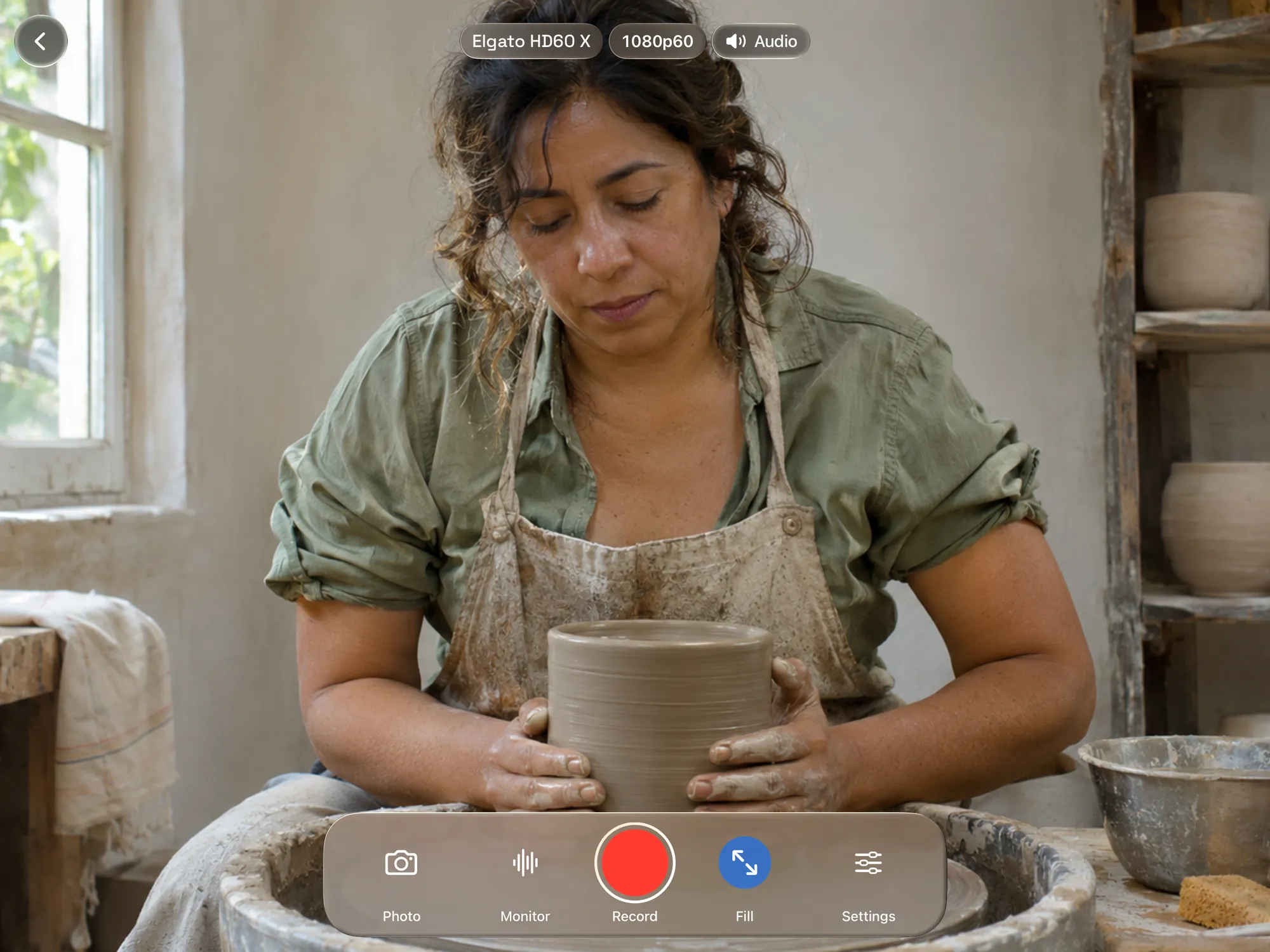
Capture Card on the home screen. Allow camera access: iPadOS treats a capture card as a camera.
Play
The picture appears by itself, and the console’s sound plays on the iPad.
Each console
From Elgato’s and AVerMedia’s capture support pages, checked November 9, 2026.
- PlayStation 5: HDCP is on until it is turned off in Settings › System › HDMI. While it is off, video apps that need it won’t play.
- Xbox Series X and Series S: games aren’t protected, so nothing needs changing. HDCP comes on only while a video app that needs it is open.
- Nintendo Switch: games aren’t protected. Dock the console and use the dock’s HDMI out.
What to expect
- The resolution and frame rate you get are the capture card’s, and so is how quickly the picture follows the controller.
- The console’s sound plays on the iPad, or can be muted.
- The game records with its sound as a movie in Files › On My iPad › Mirage, and screenshots save to Photos.
- Outputs send the picture on: Mirage Broadcast (Director, Mirage for Mac), NDI®, and Browser.
If it doesn’t work
- No picture from a PS5: HDCP is still on. Connect the PS5 to a TV and turn it off.
- No picture from an Xbox after a video app: close the app, or restart the console.
- No picture at all: check the card’s power and adapter, and that the console is on (a Switch, docked).
- No Capture Card on the home screen: it needs an iPad with USB‑C. An iPhone can watch an iPad’s Capture Card in Director.
Questions
Can I use an iPad as a monitor for a PS5?
Yes, with a USB‑C iPad, a UVC capture card, and HDCP turned off on the PS5 (Settings › System › HDMI › Enable HDCP).
Can I use an iPad as a screen for a Nintendo Switch?
Yes. Dock the Switch, run the dock’s HDMI out into a UVC capture card, and connect the card to a USB‑C iPad. A Switch Lite has no video output.
Is there a delay?
How quickly the picture follows the controller depends on the capture card. Try the card with the games you play before relying on it.
Does this work on iPhone?
No. iPhone can’t connect a capture card. It can watch an iPad’s Capture Card broadcast in Director.